
Troubleshooting ArcGIS Enterprise Server Deployment
Issues you may face
Sometimes ArcGIS Enterprise behaves unexpectedly. This could be due to network issues, licensing issues, bugs, and server-side or client-site errors. Although it may seem daunting, troubleshooting ArcGIS Enterprise is a relatively simple and easy process.
There are many approaches we can take. Components of your ArcGIS Enterprise deployment provide you with logs. You may also get error messages in the browser as well. Or simply a component could have stopped working and just needs to be started back up. Sometimes you may have a bug in your version of software that just needs to be patched. Do you have the correct license to do what you are trying to do, and if so is that license installed and active?
Questions to ask
Let’s dive deeper into each of these troubleshooting steps and go through them one by one to eliminate what could be wrong and causing your issue. Troubleshooting ArcGIS Enterprise is just the same as troubleshooting anything we must start by asking some questions:
- Are the any error messages?
- Does the browser developer console show any errors?
- Do the server logs indicate what’s wrong?
- Are all the components still running?
- Are there any network connectivity issues?
- Are there licensing issues?
- Have you tried turning it on and off again?
- Are you running the latest version?
Troubleshooting steps
Do you now have a better idea as to the thought process you should have when starting to troubleshoot? Let's go through each of them.
Error messages
The most evident method of troubleshooting is if any errors immediately pop up when trying to perform the action. Errors usually will pop up from a modal on screen within the browser or from desktop apps like ArcMap or ArcGIS Pro. If an error does pop up, make sure to note it down, or better yet take a screenshot.
Browser developer console
Sometimes the error message does not have enough information to go on and we must investigate further. The browser developer console may display more information regarding the error you are facing. Some errors may only show up there and not in the browser windows itself. One such error is a Cross-origin resource sharing (CORS) error. This usually happens when the recourse you are trying to access has been restricted. Another good indication is what HTTP error code is showing up in the console.
Server logs
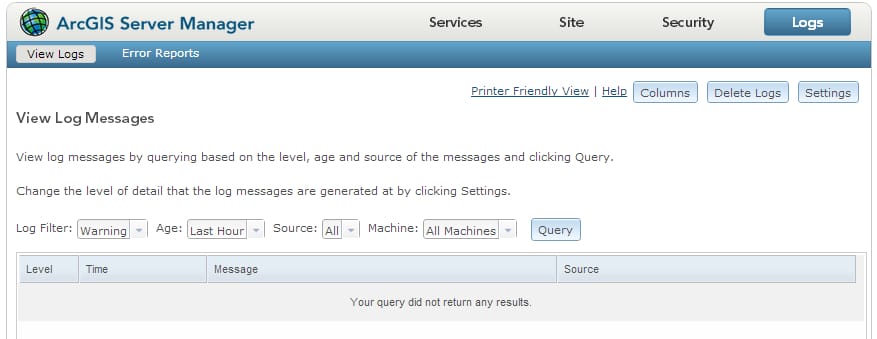
Another excellent location for error messages and information about what is happening to your server is the server logs which can be queried from the ArcGIS Server Manager page. To access your server logs, click the tab on the top far right of your server manager page. Once it has loaded you are presented with a row of options to the left of the “Query” button. Here you can select the filter level, “Warning” should be just right, as well as the age, source, and machine you want to pull the logs from. Initially, the default values are just fine. Narrow them down later if you still can’t find anything wrong.
Search online
When you have found an error message, the first thing to do is either search online to see if anyone else has encountered the issue, refer to ArcGIS documentation, or consult with your support infrastructure. By searching online using popular search engines or within the ESRI support forums, you can gain insights into the problems you are facing as well as the steps that other people have taken to solve them. Almost all problems I have ever faced can be solved by just googling the error message. If googling the entire error message doesn’t give you any results, you may also try to google part of the error message.
ArcGIS Enterprise components
Your ArcGIS Enterprise deployment is made up of several components. They are; ArcGIS Web Adaptor, ArcGIS Server, Portal for ArcGIS, and ArcGIS Data Store. For your deployment to function smoothly all the components need to be up and running. However just because a component has unexpectedly stopped does not mean it may become immediately evident. For example, if the ArcGIS Data Store has stopped running, you will still be able to access the ArcGIS Server and Portal components in your browser. You will only get errors when you try to validate your ArcGIS Data Store and when you try to load a map or layer that is stored within it. Therefore a vital troubleshooting step is to remote into each machine and check each component is running.
Network connectivity
Naturally, each ArcGIS Enterprise component will need to be able to communicate with each other just as it would need to be able to communicate with your client device. Sometimes due to a misconfiguration or a change in network settings, the components within ArcGIS Enterprise may lose connectivity with one another. Hence it is important to check that each ArcGIS Enterprise component has the necessary network connectivity and can communicate with each other. Check that there also are no firewall or IPS/IDS rules that may be blocking this connectivity.
Licensing
If you are unable to conduct a specific task in your ArcGIS Enterprise deployment, this could be due to a licensing issue, which may happen due to a few reasons. You may not have the correct license required for the action you are trying to complete. If you have the license, it may not be installed, or it may simply not be active. This might happen if your license file was accidentally deleted, has gotten corrupted, or simply needs to be updated to a valid one. To ensure you have the correct and active license, please re-authorize your components.
Component failure
Individual components can fail, crash, or freeze just like other software in our day-to-day lives. You may have experienced this while using your computer or mobile device and just closed the app and restarted it again. Server components are also quite similar in that sometimes all it takes is just turning it on and off again. An age-old cliché but true nevertheless.
Software bugs
When troubleshooting sometimes you will discover that the problem is a bug within your version of ArcGIS Enterprise. Should this be the case be sure to check if there is a patch available. Often if the problem is caused by a bug, many people in the ESRI support forums will have also reported having the same issue. ESRI is always striving to ensure that all bugs and issues are patched. For this reason, it is important to always ensure you are running the latest version of ArcGIS Enterprise.
Final thoughts
Above are some of the steps you can run to troubleshoot your ArcGIS Enterprise server deployment. To summarise, you should check for error messages, both in the logs and any that show up within the browser or browser developer console. You should search in Google for those errors you are seeing. You should also ensure that not only do you still have network connectivity but that the individual components can communicate with each other. Check that you are licensed to do what you are trying to do and that the license is installed and activated. Lastly, ensure that each component within the ArcGIS Enterprise deployment is running and has not stopped or frozen.
We hope they have helped you tremendously, and that you have fixed your issues. If you are still facing issues after trying the above steps, or if you simply prefer for someone else to handle, maintain, and/or troubleshoot your ArcGIS Enterprise deployment please contact us and we will be more than thrilled to have one of our qualified ZedPro engineers take a look immediately.
Discussion